
Working in Helios
Helios is Amber’s IDE. It runs in your browser, in a window of its own, on top of the running application. A change you save in Helios changes the running program at once. Nothing reaches the disk until you commit a package. This page walks through the tools on the Hello Amber project from the install page.
Opening Helios
Open the page of your project while amber serve runs. The starter dialog offers “legacy IDE” and “Helios IDE”; click the second. Esc closes the dialog, and Shift, Shift, Ctrl, Shift brings it back. Helios opens in a new window, so the browser must allow popups for localhost. The window has a row of tabs at the top, with a search box at its right end. It starts with a Workspace tab and a Browser tab.
The Action menu
Every command in Helios has a key. Ctrl+Space opens the Action menu. It is a small dialog that lists the commands that apply to your selection, each with its key. Press the key, and the command runs or opens a submenu. Esc closes the menu.
| Key | Command |
|---|---|
o |
Open: b a browser, w a workspace, s the test runner |
s, w |
Switch tab, close tab |
f |
Find: c a class, r the references of the selection |
g |
Go to a column of the browser: p packages, c classes, t protocols, m methods, s the source, d the documentation |
k |
Commit package |
h |
Generate: a accessors, i an initialize method, c protocols for the methods |
r |
Rename a class, a package or a protocol |
c, m, x |
Copy, move or remove a class, a method or a protocol |
t |
Toggle: c the class side, d the documentation |
So Ctrl+Space, o, w opens a second workspace. Ctrl+Space, k commits the package of the class you are looking at.
The browser
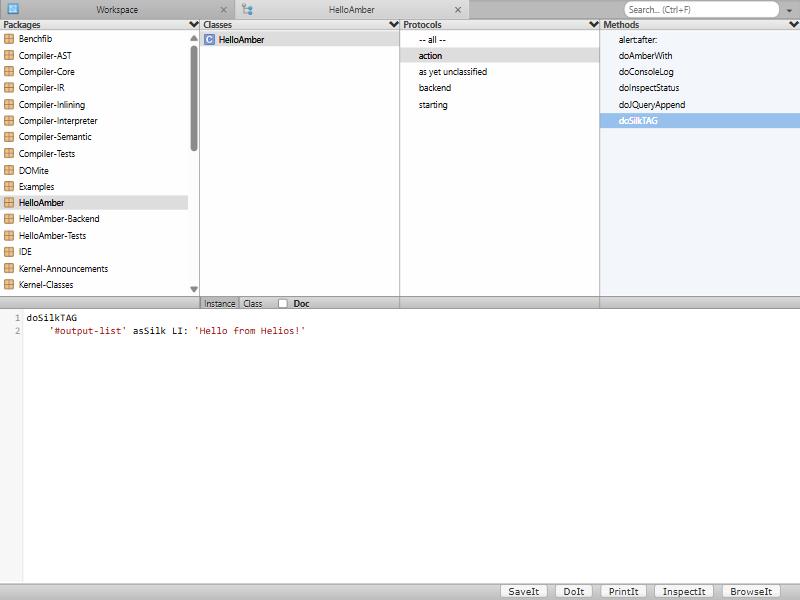
The browser has four columns: packages, classes, protocols and methods. Under the columns, “Instance” and “Class” switch between the instance side and the class side. “Doc” shows the class comment in place of the source. Below is the source pane, with the buttons SaveIt, DoIt, PrintIt, InspectIt and BrowseIt.
What the source pane shows follows your selection:
- A package: its definition, with its name, its imports and its namespace. This is where you add an import. Edit the list and press Ctrl+S. The libraries page shows it.
- A class: its definition. For the sample it is
Object subclass: #HelloAmber slots: {} package: 'HelloAmber'. Edit it and press Ctrl+S, and the class gets its new slots or its new superclass. Change the name, and Helios makes a second class with that definition; the first stays. - A protocol: the methods column narrows to it.
-- all --lists every method of the class. A protocol whose name starts with a star holds methods that another package adds to this class.*Platform-ServicesonDateis one. The package named after the star owns the methods. - A method: its source. Edit it and press Ctrl+S, and Helios compiles it into the running program. An arrow before a method’s name says that it overrides a superclass’s method, or that a subclass overrides it.
To add a method, select the class and the protocol it should go into. Replace the text of the source pane by the method and press Ctrl+S. Helios reads the first character. Text that starts with a capital letter is a class definition. Anything else is a method. The new method appears in the methods column, selected.
Finding things
The search box at the top right, or Ctrl+F from anywhere, finds classes and selectors as you type. Type doSilk, and it offers doSilkTAG. Enter opens a References tab with four columns. They are the senders of the selector, its implementors, the references to the class, and a search through all source. Selecting an entry shows the method below. Ctrl+Space, f, r opens the same tab for the selected method. Ctrl+Space, f, c finds a class by name.
The workspace
A workspace is an editor with a Transcript under it. Type an expression, select it or leave the cursor on its line, and press one of four keys:
- Ctrl+P prints the result after the expression.
3 + 4becomes3 + 4 7. The7is selected, so Delete removes it again. - Ctrl+D evaluates the expression and shows nothing.
Transcript show: 'hello'writeshellointo the Transcript pane. - Ctrl+I opens the result in an Inspector tab.
- Ctrl+B opens a browser on the result. Select
Dateand press it, and a browser opens on the classDate.
The four buttons under the editor do the same.
The inspector
An Inspector tab shows one object. The left column lists its parts: #self, then its instance variables, or for a dictionary #keys and each key. Selecting a part shows its value on the right. “Dive” replaces the inspected object by the selected part. The editor at the bottom is a workspace in which self is the inspected object. In an inspector on a dictionary of two entries, self size prints 2. The inspector refreshes itself, so an object that changes shows its new state.
The debugger
When an error is not handled, Helios shows a dialog with the error’s message and two buttons, Abandon and Debug. The message reads, for example, “nil does not understand #foo”. Debug opens a Debugger tab.
On the left is the source of the method where the error happened, with the statement that was running marked. On the right is the call stack, one line per context, from the error outward. Select a context, and the left pane shows its method. The pane below lists its variables: thisContext, self, the arguments and the temporaries, each with an inspector pane. Above the variables are four buttons. Restart runs the selected context’s method again from its start. Where marks the statement where it stopped. Step over runs the next statement. Proceed returns from the error and lets the program run on.
The source on the left is editable. Fix the method, press Ctrl+S, and press Restart: the program runs on with the fix.
The test runner
Ctrl+Space, o, s opens the SUnit tab. The left column lists the test packages, the next column the test classes of the selected packages. Select the classes to run, or press “Select all” under either column, and click “Run Tests”. The bar at the top counts runs, passes, errors and failures, and is green when all pass. The lists on the right name each failure and each error. Select one, and Helios runs that test again on its own. Its error then comes up in the dialog, with Debug on offer.
Save against commit
Ctrl+S, like the SaveIt button, compiles what is in the source pane into the running program. The page sees the change at once. The files on disk do not. Reload the page, and the change is gone.
Commit writes a package to disk. Ctrl+Space, k commits the package of the class you have selected. Helios sends the package to amber serve, which writes src/HelloAmber.st and src/HelloAmber.js, and Helios shows “Commit successful”. The server writes into the directory it was started in, so start amber serve in the project’s directory.
Commit every package you changed. A method you add to a class of another package goes into a protocol such as *HelloAmber. It belongs to HelloAmber and is committed with it.
Keys in the editor
| Key | What it does |
|---|---|
| Ctrl+S | Save: compile the method or the definition |
| Ctrl+D, Ctrl+P, Ctrl+I, Ctrl+B | Do it, print it, inspect it, browse it |
| Shift+Space | Complete the word at the cursor |
| Ctrl+F, Ctrl+G, Shift+Ctrl+G | Find, next match, previous match |
| Shift+Ctrl+F, Shift+Ctrl+R | Replace, replace all |
| Ctrl+Z, Ctrl+Y | Undo, redo |
| Ctrl+[, Ctrl+] | Indent less, indent more |
On a Mac, Cmd takes the place of Ctrl in the editor. The Action menu stays on Ctrl+Space.
The legacy IDE
The starter dialog’s other button opens the legacy IDE inside the page itself. It has tabs for a Transcript, a Workspace, a test runner and a class browser. It compiles into the running program and commits packages as Helios does. It is older and smaller, and it needs no popup.